 Physix Frontier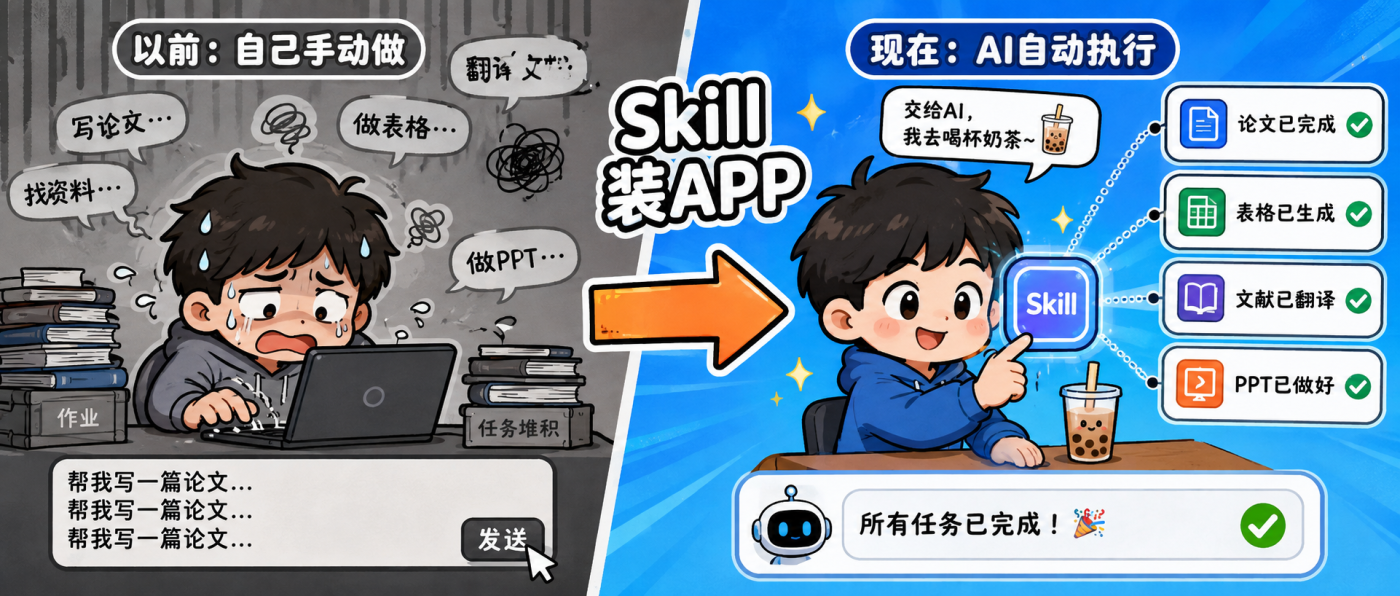
What's the difference between a Skill and a chat box? One example makes it clear

For the first three days, you were doing everything manually in the chat box. It works, but it's tiring.
Today I'm introducing Skill—install once, and AI runs the whole workflow automatically thereafter. One example explains the difference between it and the chat box clearly.
1. Same Task: Chat Box vs. Skill
Scenario: You want to organize class notes into a knowledge tree.
Using the Chat Box:
Step 1: Type instructions to AI: "Please organize the following notes into a knowledge tree, use chapter titles as level-1 headings, extract 3 core concepts per chapter, and present in a table."
Step 2: Paste the note content.
Step 3: AI gives results, you feel the format is wrong, add "Change to tree structure."
Step 4: AI regenerates, you copy it to your document.
Step 5: Next time you organize another set of notes, repeat the above four steps.
Problem: You have to repeat the same instructions every time. Do it five times and you'll get annoyed.
Using Skill:
Step 1: Install a "Note Organization" Skill (one-time operation, no need to reinstall later).
Step 2: Open the Skill, paste the note content.
Step 3: Automatically outputs the knowledge tree, formatted according to your preset.
That's it. Just three steps. No repeating instructions, no adjusting formats, no back-and-forth chatting.
Skill solidifies your "fixed workflow." You only provide the "content," and it automatically completes the "processing."
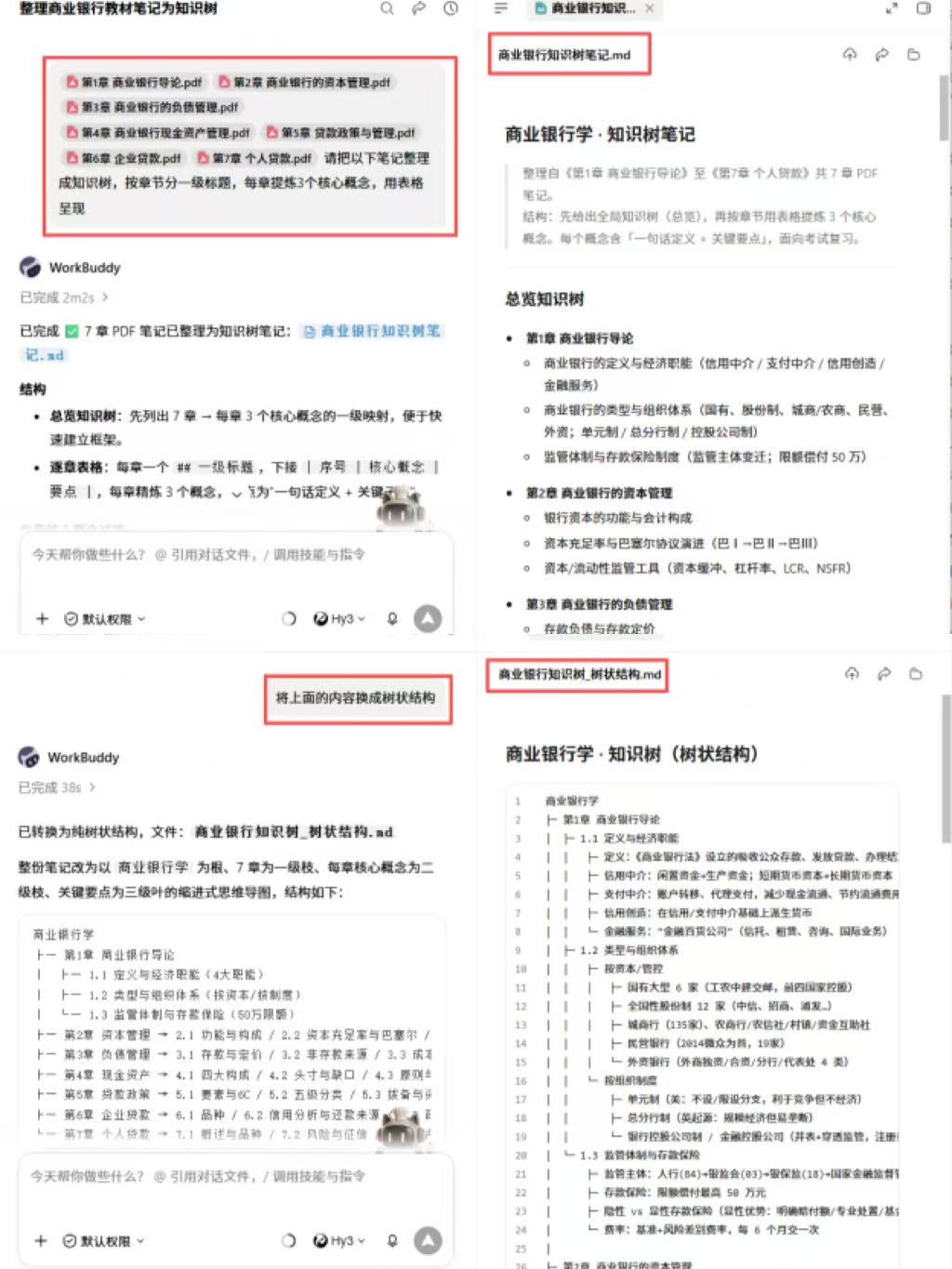
VS
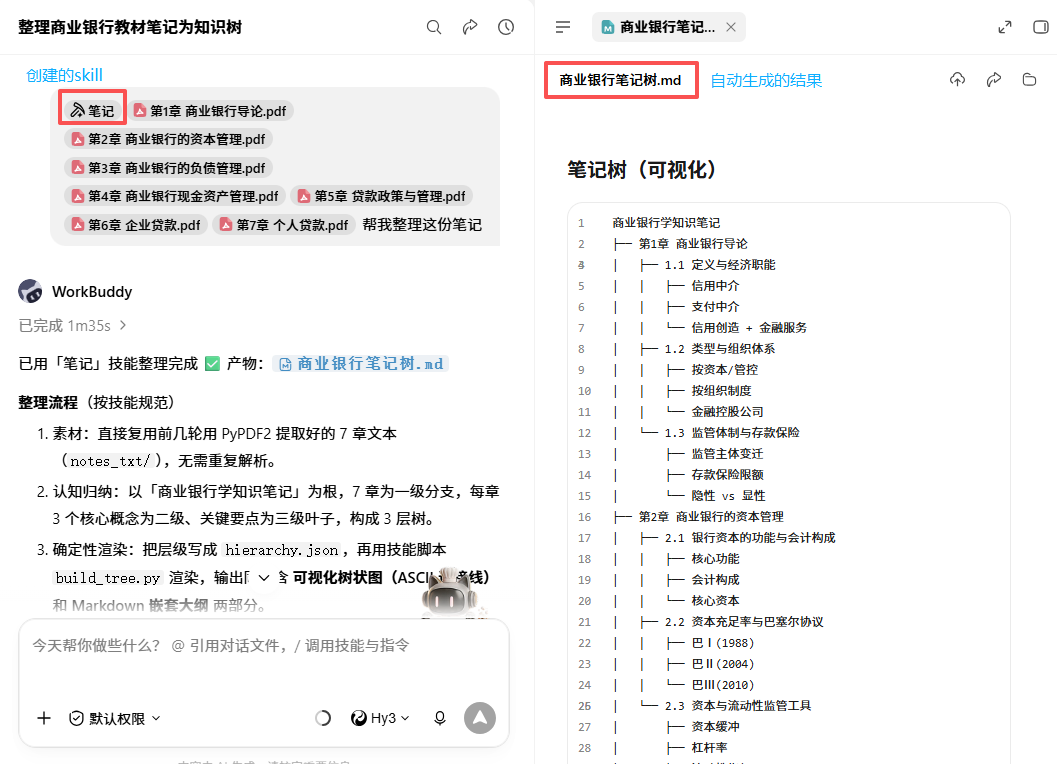
Figure 1 | Comparison of Chat Box vs. Skill Operational Steps
2. Core Advantages of Skill
From the comparison above, you can see three core advantages of Skill:
- Automation: No need to type instructions every time. Skill has built-in processing logic; you give content, it gives results. Those intermediate steps of "telling AI what format to use" or "adjusting output method" are all saved.
- Reusability: Install once, use forever. Use it to organize notes today, courseware tomorrow, and thesis literature the day after. No need to describe requirements from scratch every time.
- Standardization: Output format is consistent every time. The problem with chat boxes is that for the same instruction, AI might give different formats each time. Skill doesn't do that; its processing logic is fixed, and output is stable.
Summary in one sentence: Chat boxes are suitable for one-off, personalized tasks; Skills are suitable for repetitive tasks with fixed workflows.
3. Step-by-Step Guide to Installing Your First Skill
Step 1: Find the Skill Entry
Click the third icon on the left navigation bar, "Skill." The first time you open it, it might be empty. Don't panic; I'll teach you how to install below.
Step 2: Browse the Skill Store
On the Skill page, click "Browse" or "Discover." You'll see many installable Skills. Filter by category: Efficiency, Learning, Creation.
Step 3: Search for Note Organization
Enter "Note Organization" or "Knowledge Tree" in the search box to find the corresponding Skill. Check the rating and installation count; choose the one with higher installs.
Step 4: Click Install
Click the "Install" button and wait a few seconds. Once installed, a new icon will appear in the Skill list.
Step 5: Test It Out
Open the newly installed Skill, paste a segment of note content, and click Run. If it automatically outputs a knowledge tree, installation was successful.
Step 6: Configure Preferences
Some Skills support custom configuration. For example, you can set "Default output format to table" or "Extract 5 concepts per chapter." Adjust according to your needs.
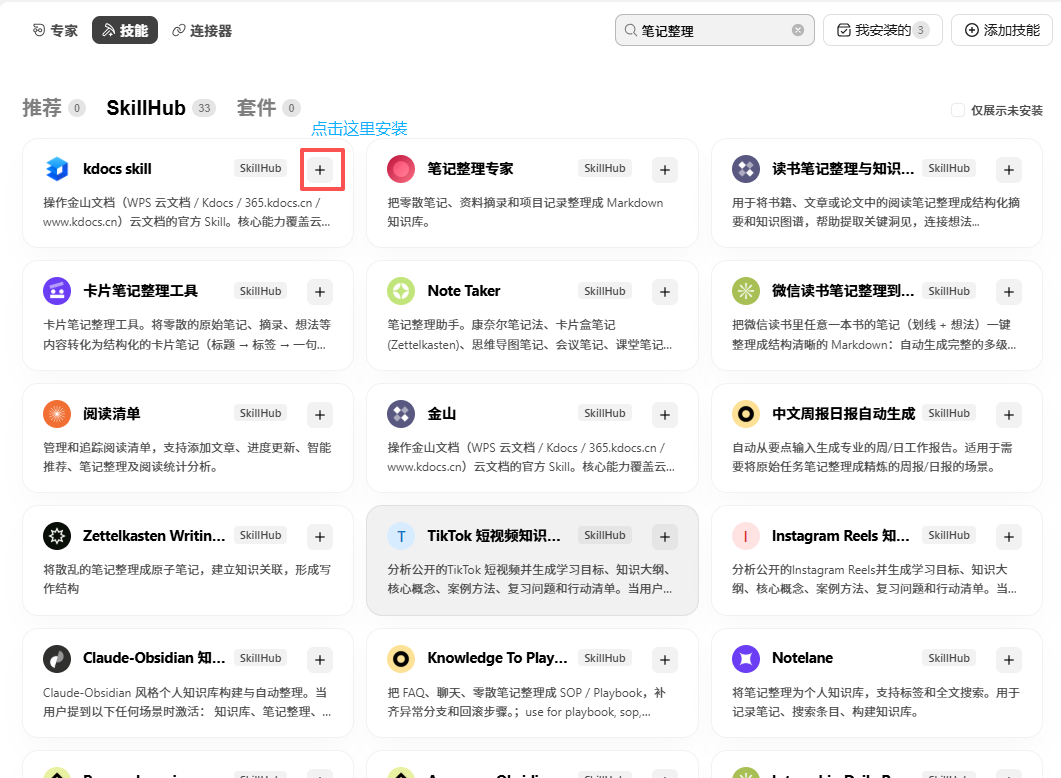
Figure 2 | Skill Store Search and Installation
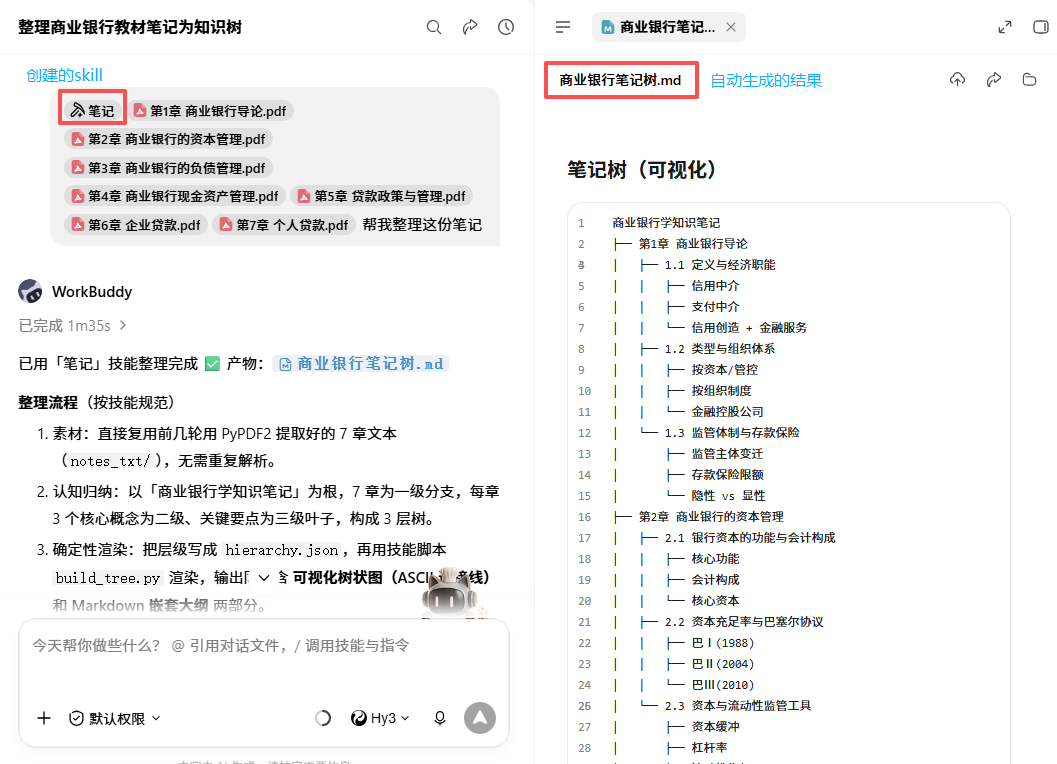
Figure 3 | Skill Usage Demo
4. How to Verify Effectiveness After Installation? Common Issues
Q: Can't find the Skill after installing?
A: Go back to the "Skill" page on the left navigation bar and scroll down. Newly installed Skills are usually at the bottom of the list. If you still can't find it, restart the software.
Q: Skill throws an error?
A: Check two things: 1. Is the network normal (Skills require internet to run)? 2. Is the correct model selected (some Skills only support specific models)? Try switching to Hunyuan Hy3.
Q: Can Skill and Chat Box be used together?
A: Yes. They are two different usage modes and don't conflict. Switch as needed daily: use Chat Box for simple Q&A, use Skill for fixed workflows.
Q: What if I install it but don't want to use it anymore?
A: Find it in the Skill list and click "Uninstall." Uninstalling won't affect your chat history or workspace data.
Q: Does Skill cost money?
A: Most Skills are free. Whether paid is marked before installation. Beginners are advised to use only free ones; they are sufficient.
5. Tomorrow's Preview
Today you learned how to install Skills. Chat Box is "you ask one step, it answers one step"; Skill is "install once, permanent automation."
Tomorrow we go further: Let AI not just answer you, but operate directly on your files. Have a paper to revise? No need to copy-paste; AI edits directly on your document.
From Chat to Skill, from Skill to File Operations—you are getting closer to "AI working for you."