 Physix Frontier
From Download to Submission in 30 Minutes: A Beginner's Guide to AI Workflows

Let's be real. When you downloaded that AI tool, your thought was, "Finally, I won't have to write my own assignments." You opened it, said "Hello," it replied "Hello," and then you closed it.
A week later, your chat history still stops at "Help me write a paper" and "Sure, what's the topic?" You've gone back and forth for hundreds of rounds, but not a single task actually got done. The tool isn't broken; the problem is that you skipped the most critical 30 minutes. In those 30 minutes, you turn a chatbot into an assistant that actually works for you. Set it up right, and you save 300 hours down the line. Skip it, and it remains just a fancy search box.
This guide takes you from download to submitting your first assignment in 30 minutes. I recommend following along on your computer—don't just read, do it. It's like learning to swim: reading a hundred tutorials doesn't beat getting in the water once.
Install it in 3 minutes
Go to the official website and download the installer. Windows and Mac are both supported. Windows users, note this detail: after downloading, don't just double-click it. Right-click and select "Run as administrator." Why? Because many people just double-click, causing skill packs to fail loading later. They spend ages troubleshooting and finally ask me, "Is there a bug in the software?" — No bug, you just missed clicking that right-click option.
Mac users have it easier: double-click the .dmg file and drag it to the Applications folder. If you see "Cannot verify developer," don't panic. Go to System Settings > Privacy & Security and click "Open Anyway." This is Apple's security mechanism, not a software issue. Apple treats everyone with this same stern face.
Once installed, open it, log in via WeChat QR code, and you're in the main interface in 3 seconds. New users get some free credit quota, enough to run through several assignments. By this step, you've already surpassed 60% of users—they get stuck at "Downloaded but didn't install."
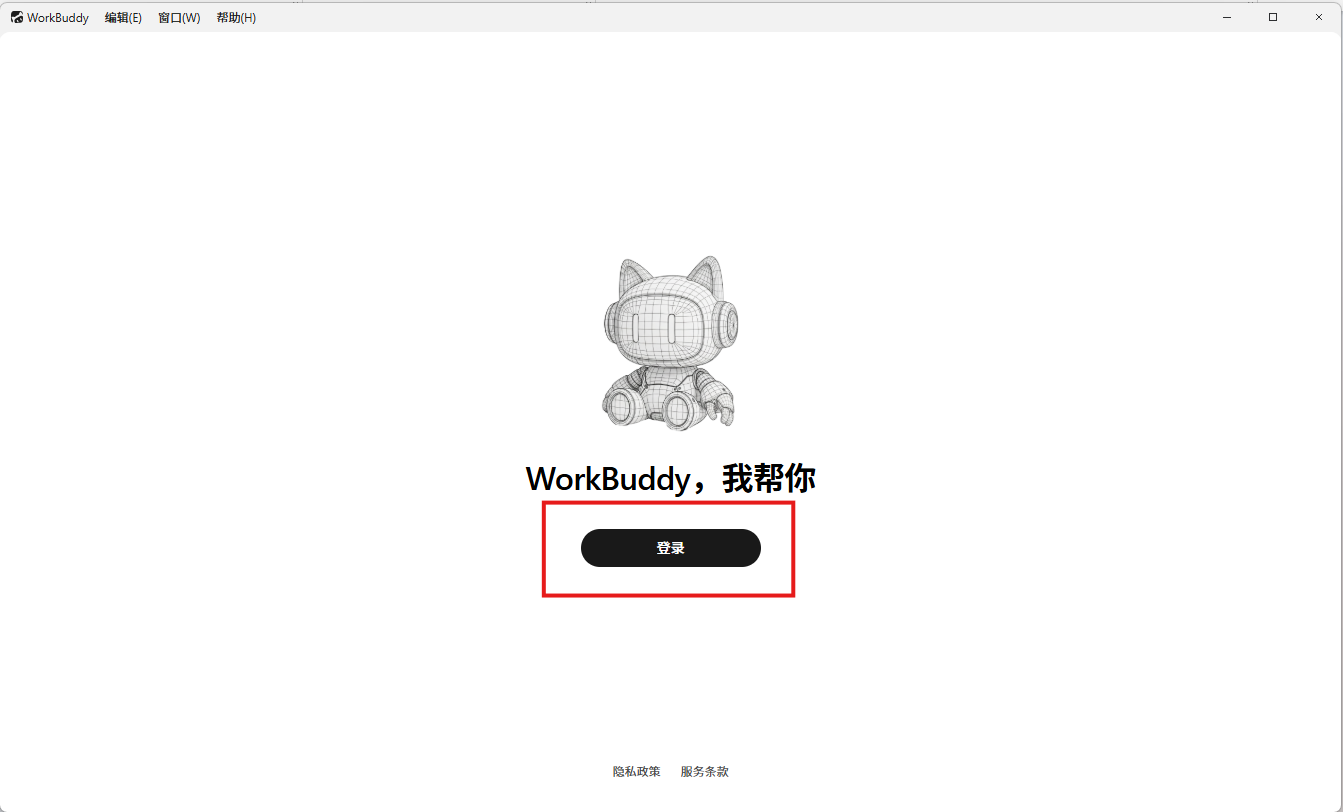
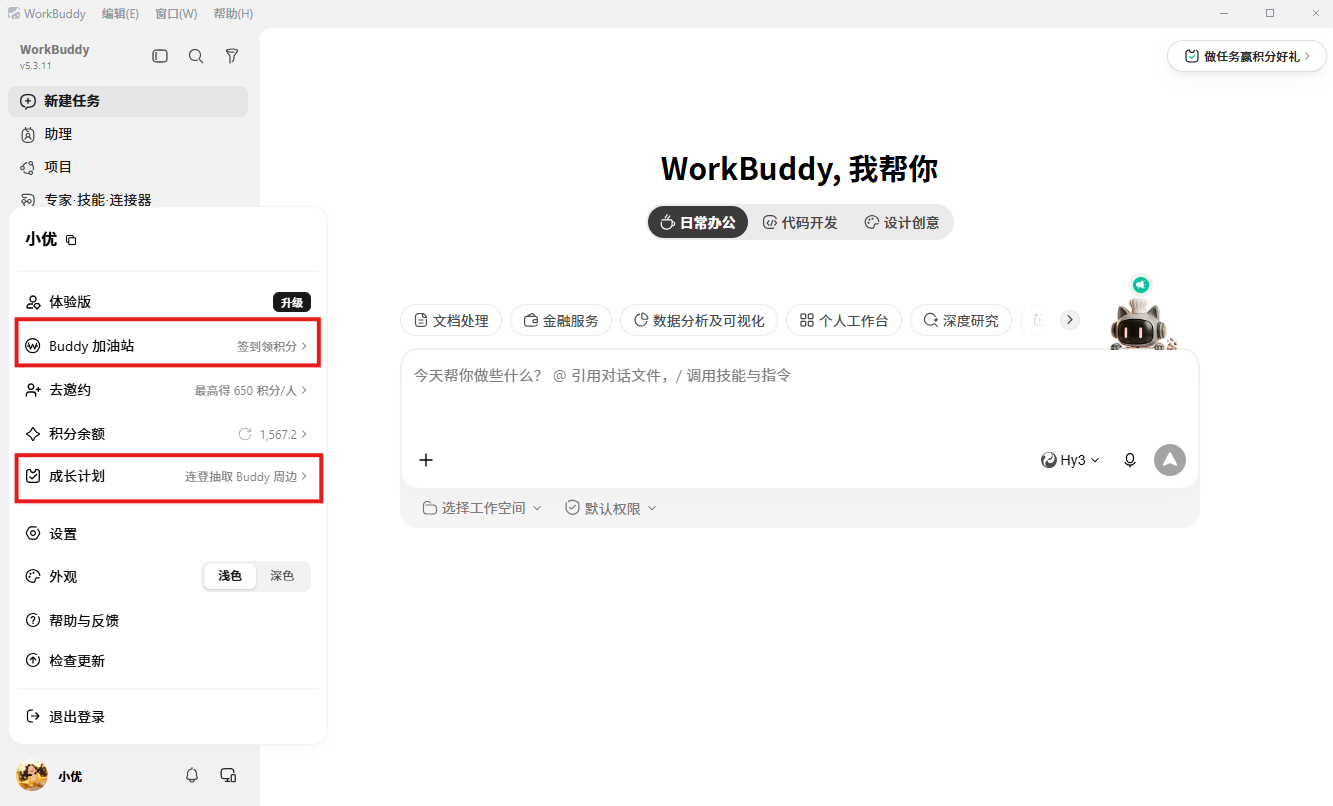
Figure 1: From download/install to login, done in 3 minutes
Know the interface, avoid 80% of pitfalls
Many people start working immediately after installation, only to find things aren't behaving as expected. That's because you haven't figured out the three most important elements on the interface.
Above the chat area, there are three mode buttons: Ask, Think, Do. These aren't decorations; they determine how the AI helps you work.
Ask: Chat only, no action. Use this for checking concepts or asking questions. It won't touch your files. It's like having an encyclopedia. Think: Plan first, act later. The AI lists an execution plan, and you approve it before it starts. Good for complex tasks or when you're unsure yourself. Do: Serious work mode. It receives a task, breaks it down, executes it, and delivers results directly.
Beginners should default to "Think" mode. You give a task, it shows you the steps first, and only executes when you nod yes. It's like installing a "raise hand before acting" switch. Switch to "Do" mode once you're comfortable. Don't go full auto from the start—you don't even know what it can do yet, so giving it full authority is like buying a blind box.
You can switch models in the bottom right corner. For daily assignments, the default Hunyuan model is fine. For long documents, switch to a model with a longer context window. Don't agonize over which one to pick; just get the default running first. Indecision isn't a big deal in the AI era.
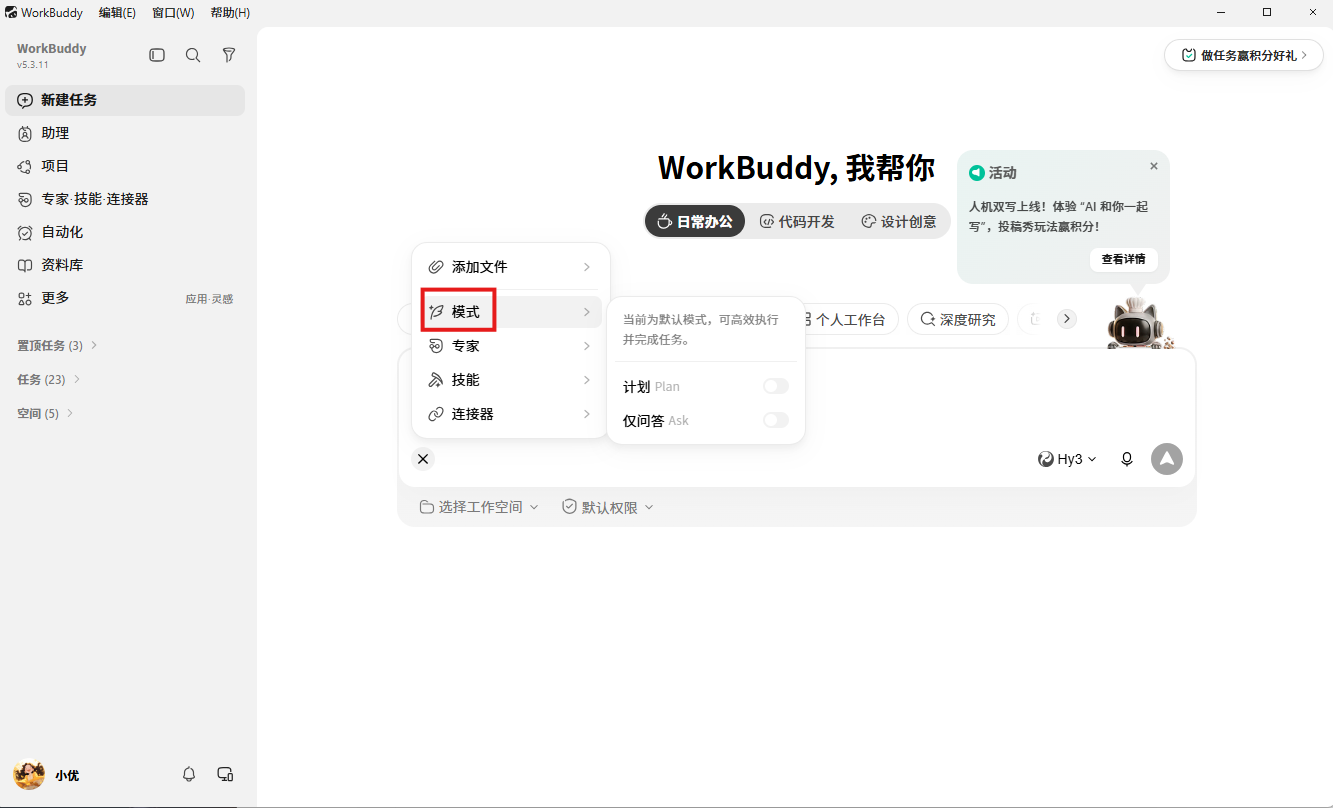
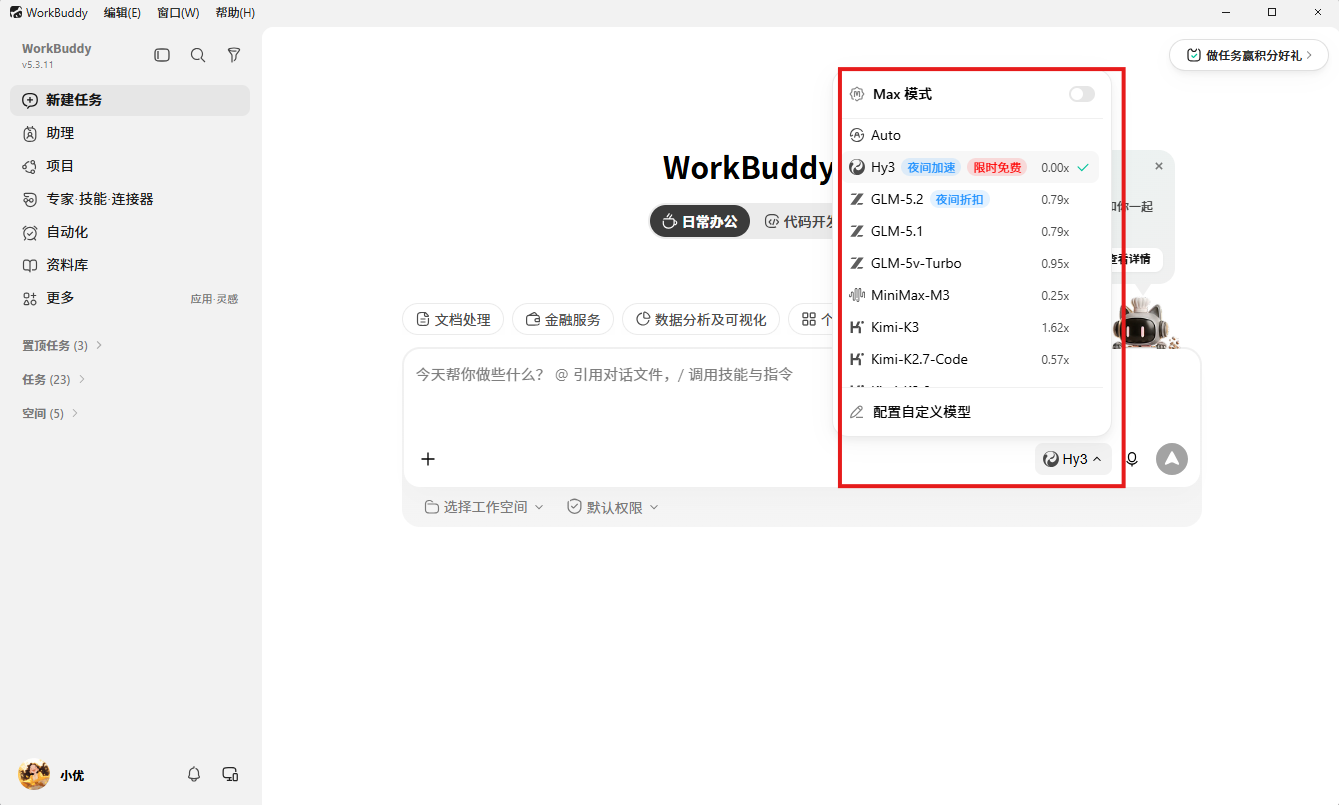
Figure 2: Three modes; beginners should start with "Think"
Authorize folders, a 2-minute job
The first thing to do after installation isn't chatting—it's telling the AI which parts of your computer it can access. Go to Settings > File Access Permissions and authorize your common working directories.
What happens if you don't authorize? You ask it to "organize my desktop files," and it says "Access denied." You ask it to "analyze this Excel sheet," and it says "Please upload first." Every step requires you to manually feed it files, cutting efficiency in half. You hired an assistant but gave it no hands; you're just using a command-line approach on a graphical tool.
After authorization, simply say "Analyze the sales data on my desktop," and it will find the file, open it, analyze it, and deliver results in one go.
There's also a concept called Workspace. Simply put, it's the AI's desk. It only looks for things and saves results within this folder. I recommend one folder per project, e.g., separate folders for "Final Paper" and "Lab Report." The cleaner the materials in the workspace, the more accurate the output.
Remember this: Garbage in, garbage out. The messier the folder, the less accurate the AI's results. Spend two minutes organizing your directories now to save two hours later. The math is simple.
Complete your first task in 10 minutes
Basics are set. Now for the main event. Use a scenario you'll definitely encounter—writing a course literature review—to connect all the features.
Suppose you need to submit a literature review this week. You have 5 PDF papers in your Downloads folder. Manually reading, extracting, and organizing each one takes at least half a day. Let's try a different way.
First, create a "Literature Review" folder in your workspace and drop the 5 PDFs inside. Then switch to "Think" mode and type this into the chat:
"Read the 5 PDFs in the 'Literature Review' folder in my workspace and help me create a literature review. Requirements: 1. Extract core arguments and research methods from each paper; 2. Categorize by theme, don't list paper by paper; 3. Cite which paper each argument comes from; 4. Generate a Word document and save it to the workspace."
After sending, it will list an execution plan for your review: Step 1 reads the 5 PDFs, Step 2 extracts key info, Step 3 categorizes by theme, Step 4 generates the review document. It only starts working after you confirm.
Wait two or three minutes, and a clearly structured literature review appears. Each section cites its source paper. You just need to check if the arguments are accurate, add your own analysis, and submit.
This logic applies to any assignment scenario: let it organize data and make charts for lab reports, generate PPT outlines for class defenses, or turn lecture slides into knowledge cards for final exam review. The core logic is always: "Set rules, define scope, list steps first, execute after confirmation."
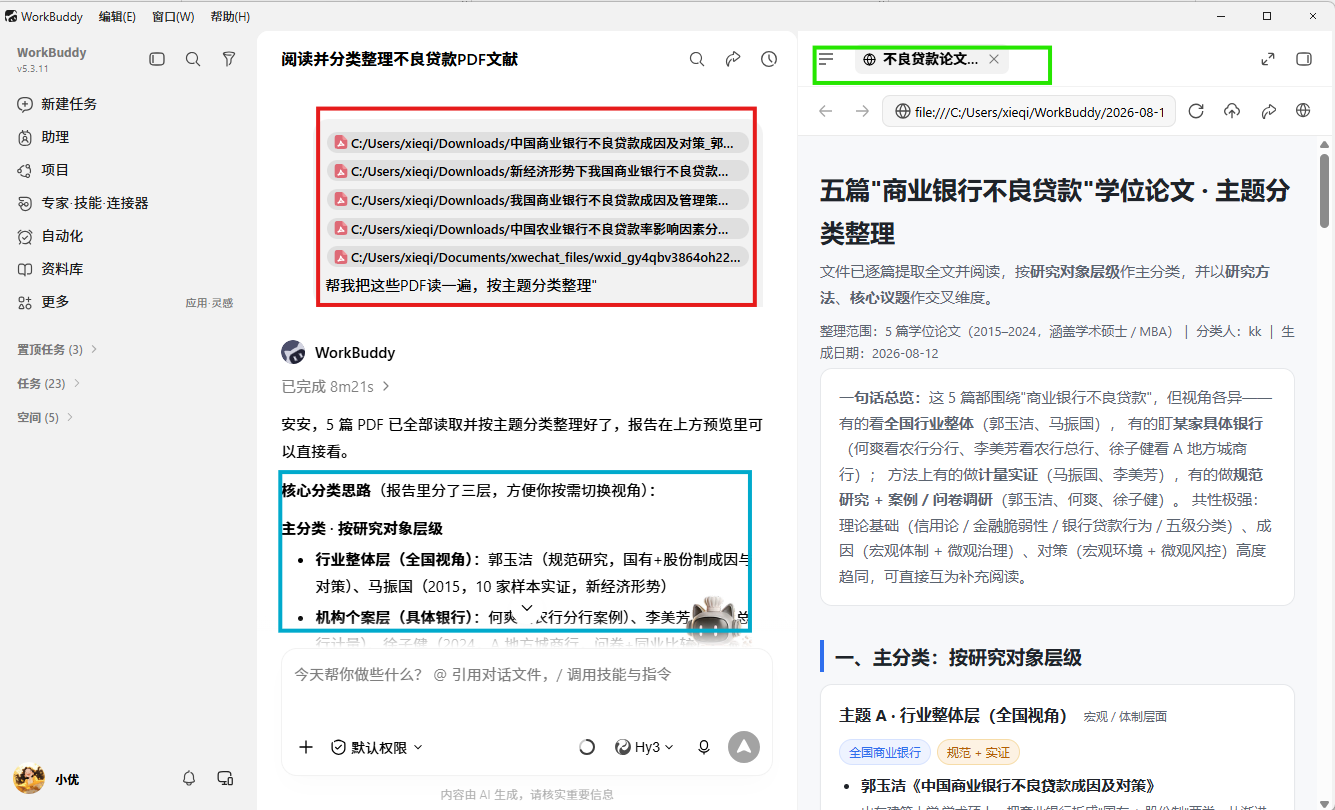
Figure 3: From 5 PDFs to a literature review, completed in 10 minutes
Submit the final product, 5 minutes to wrap up
You cannot submit AI-generated content directly. After the AI finishes, you still have three things to do.
First: Check facts. The AI might mix up arguments from two papers or misattribute a research method. Focus on paragraphs with citations to ensure arguments match the original text. If you're unsure, delete it rather than leave errors.
Second: Add your voice. The AI's review structure is clear, but it reads like machine writing—because it lacks your judgment. Add a sentence or two of your analysis after each thematic paragraph: "This study has a small sample size," or "This conclusion contradicts findings in the third paper." These are where your points come from. Teachers look for your thinking, not the AI's organizational skills.
Third: Adjust formatting. Just say in the chat, "Change the title to Bold Size 3, body text to Songti Small 4, line spacing 1.5x," and it fixes it instantly. Much faster than manual adjustment.
Summary in one sentence: AI does the grunt work; you do the refinement. It helps extract structure from 5 papers; you handle judgment, supplementation, and quality control. That's the correct posture for "human-AI collaboration," not "AI writes it, I submit it."
Pitfall checklist, read in 5 minutes
Finally, here are the easiest traps for beginners. Stepping in one costs you half an hour.
Trap 1: Installing in Chinese-named directories. Folder names like "Office Tools" cause weird errors. Stick to the default English path; don't mess around. The smoother the road you pave for the AI, the faster it runs.
Trap 2: Starting without setting a workspace. Without specifying a folder, the AI doesn't know where to find files or save results. Create the folder first. This is the foundation. A house without a foundation won't stand for three seconds.
Trap 3: Dumping huge tasks immediately. "Write a 5000-word paper"—the AI will likely go off-track. Break it into three steps: "Outline first," "Write Part 1," then "Polish." Quality improves significantly.
Trap 4: Only chatting, never working. If you've used it for a month and are still doing Q&A, you're stuck in "Ask" mode and never let it execute tasks. Switch to "Think" or "Do" mode, give it a specific job, and feel what it means for "AI to work for you."
Trap 5: Not backing up important files. AI edits can be rolled back, but don't test it on your only copy of a contract. Develop a habit of backing up; duplicate important items first.
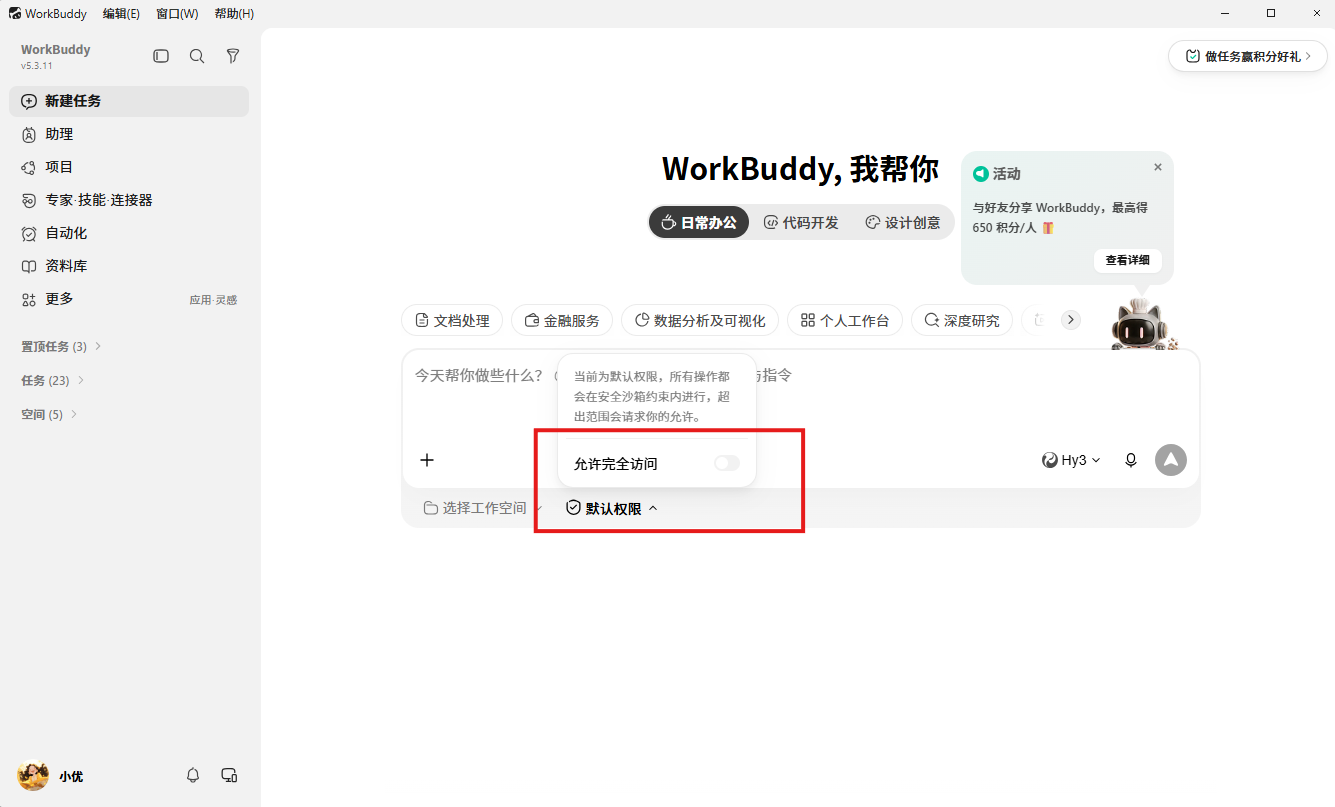
Figure 4: Pitfall Checklist—Setting Permissions and Workspace
In Conclusion
Looking back at these 30 minutes: Install it, learn the interface, authorize folders, complete the first task, check the output, remember the pitfalls. Six steps, and you've transformed from a beginner who "only chats" into someone who "makes AI work for them."
Most people get stuck at step one—they start chatting right after installation and are still doing Q&A a month later. It's not that the tool is bad; it's that you skipped the 30-minute setup. Those 30 minutes are worth 300 hours of saved time.
Next time before submitting an assignment, try throwing files at it and saying, "Organize this into a review." You'll find yourself doing less manual labor and spending more time thinking and judging. This is what AI should look like.

